Open iPhone Duo and fold it like a laptop. Your Mac at home shows on the upper screen, and the lower screen becomes a keyboard and trackpad.
Nothing to install on your Mac. Just turn on Screen Sharing.
Add Kamité Link to your Mac for its sound, a shared clipboard and lighter video.
Download Kamité Link (Mac, free)Only your iPhone and your Mac are connected. None of our servers sit in between.
Switch any time from the menu of the round button at the bottom left (on tall iPhones, from the tiles under the Mac's screen).
A keyboard laid out like the Mac's, with the F keys and arrows right where a MacBook has them.
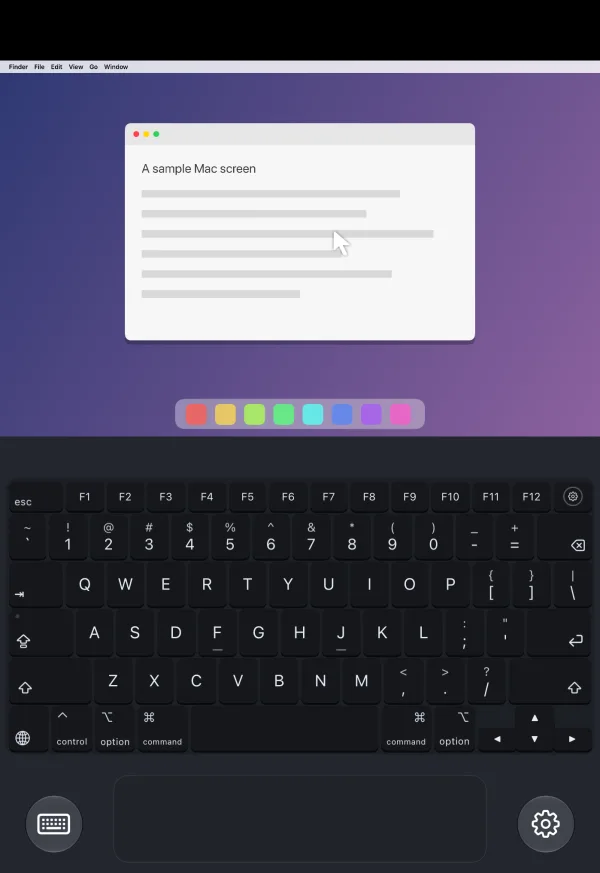
Tap the Mac's screen to click right where you touch. Press and hold, then move to drag; a magnifier shows what your finger covers.
At home, connect to a Mac on the same Wi-Fi; away, use Tailscale or your own VPN. Save both addresses and Kamité picks the one that answers.
Video gets lighter and your Mac's sound plays on the iPhone. Text and images you copy on one side arrive on the other (passwords and files are never sent). Even when the Mac is locked, you can switch to Screen Sharing and unlock it.
No account to create, no data collected, no ads, no analytics. On cellular, Kamité lowers the quality to save data. See the Privacy Policy.
Kamité is made for iPhone Duo opened and folded, and works the same way on other iPhones and on iPad.
On a tall iPhone, the kinds of keyboard line up right under the Mac's screen and the rest is a large trackpad. Turn it sideways for a bigger Mac screen with a trackpad beside it, on the right or the left.
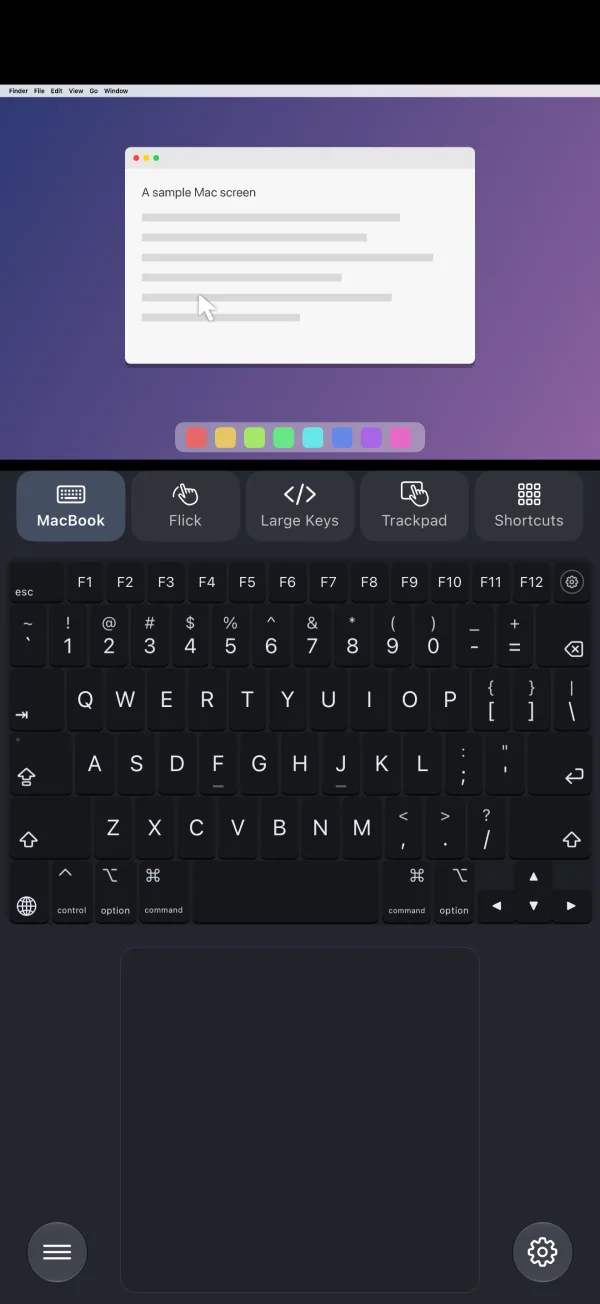
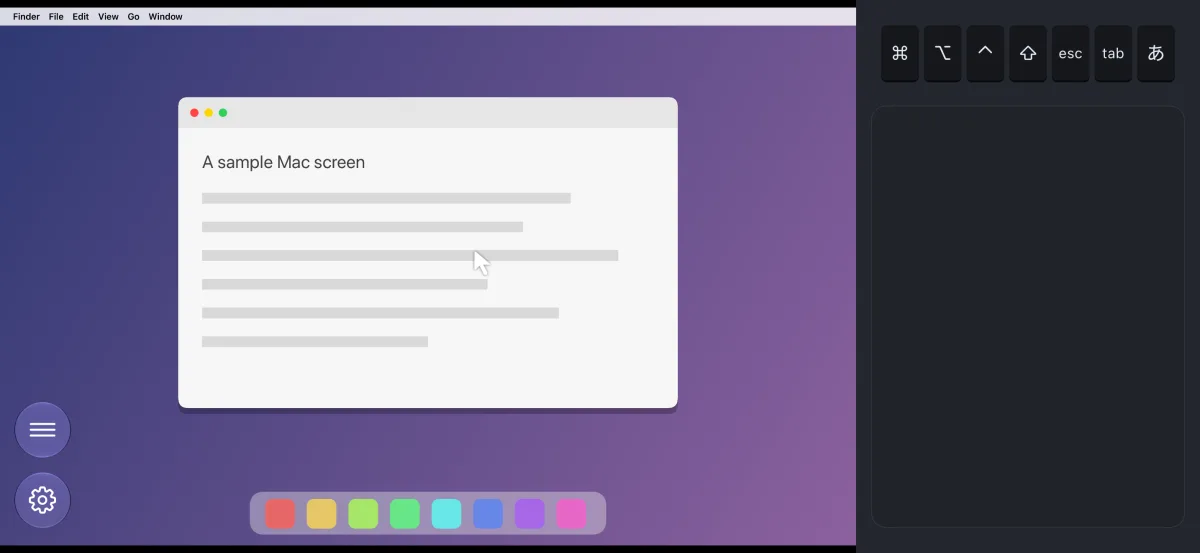
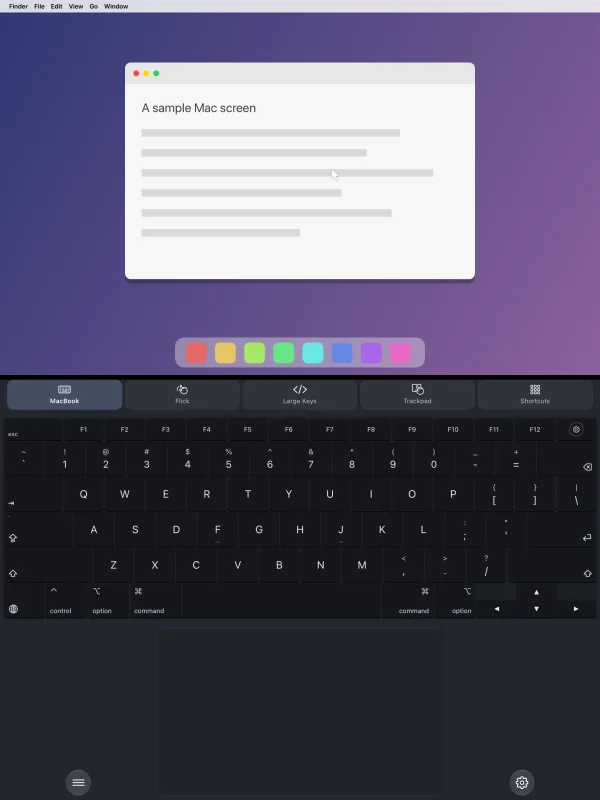
Upright, the Mac's screen sits above square keys, with the trackpad in the middle as on a MacBook. Sideways, your Mac's screen fills the iPad.
On the Mac, go to System Settings > General > Sharing and turn on Screen Sharing. Nothing to install on the Mac.
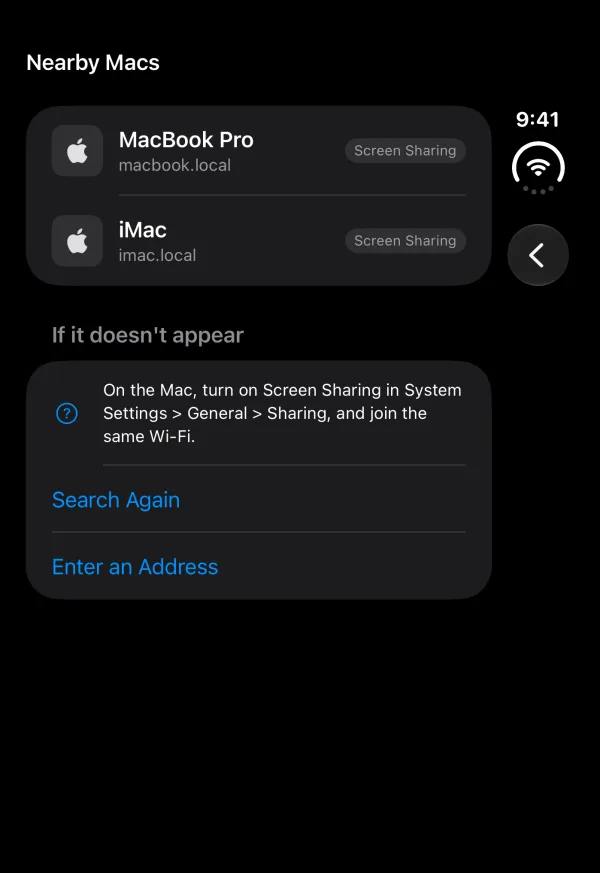
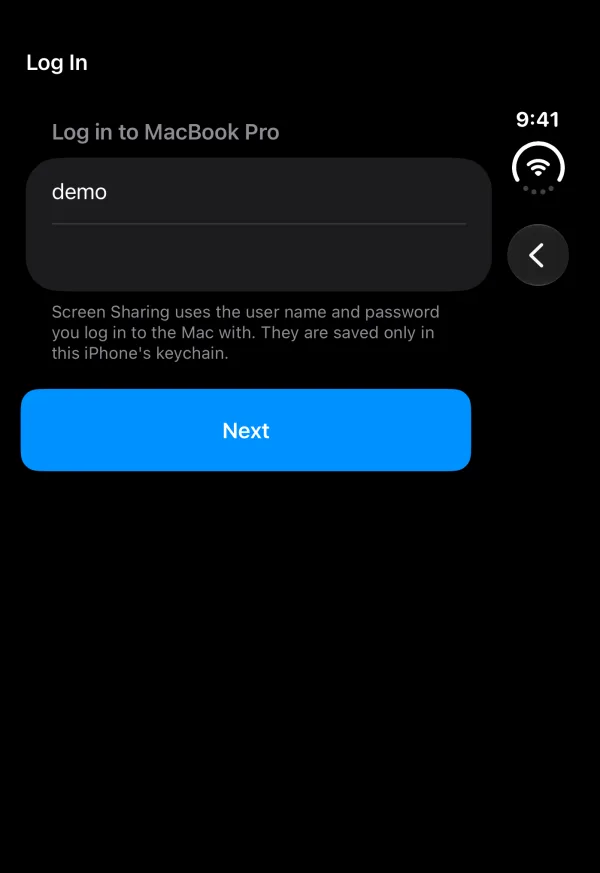
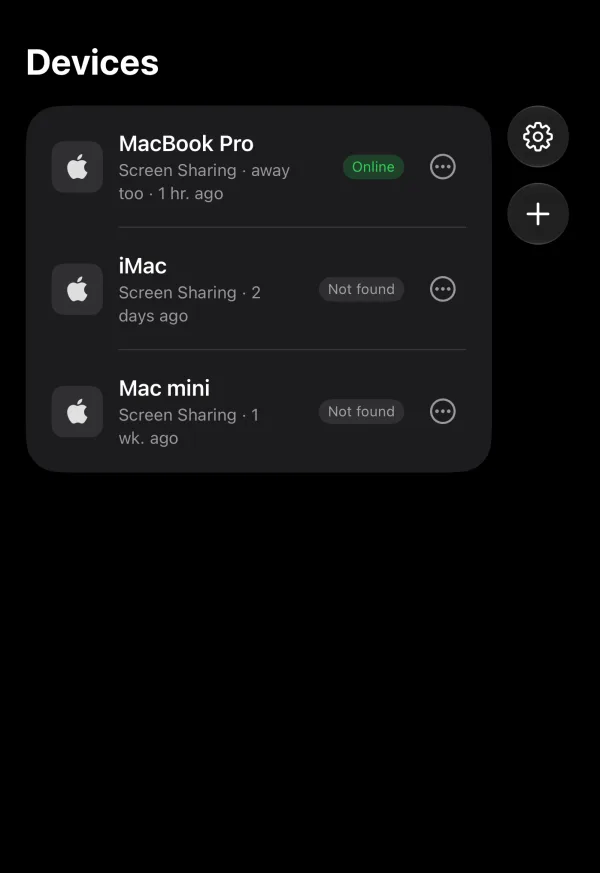
On first launch, a setup guide opens. Find a Nearby Mac lists the Macs on the same Wi-Fi; pick yours, enter the Mac's user name and password, and you are in. Connected Macs stay in the list, so next time it is one tap.
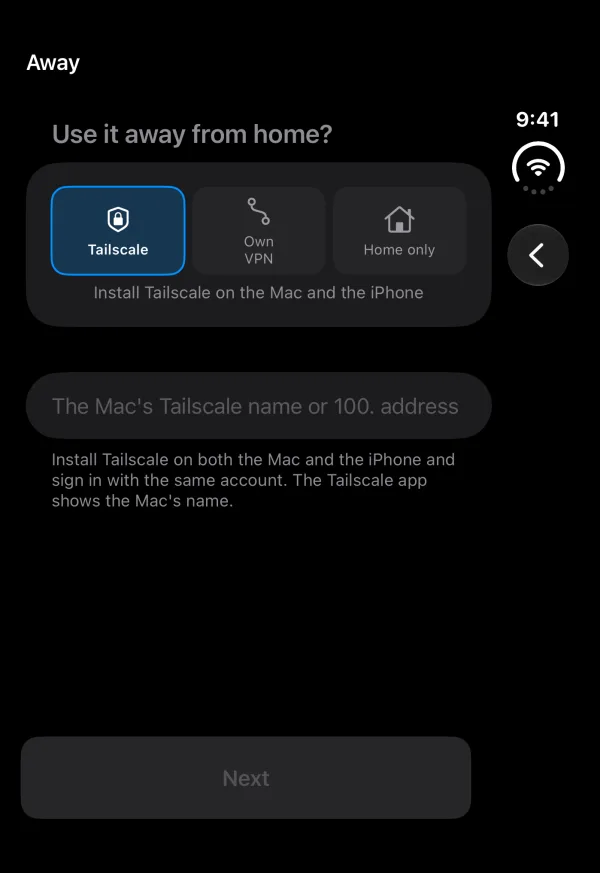
Install Tailscale on both the Mac and the iPhone, sign in with the same account, and enter the Mac's Tailscale name at "Use it away from home?". A VPN of your own works too. Screen Sharing is not encrypted, so we do not recommend opening router ports to the internet.
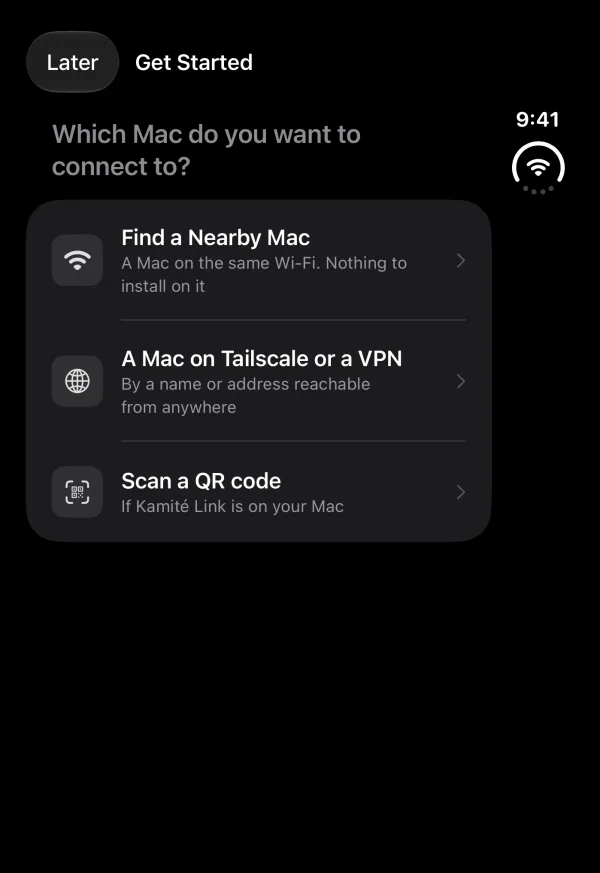
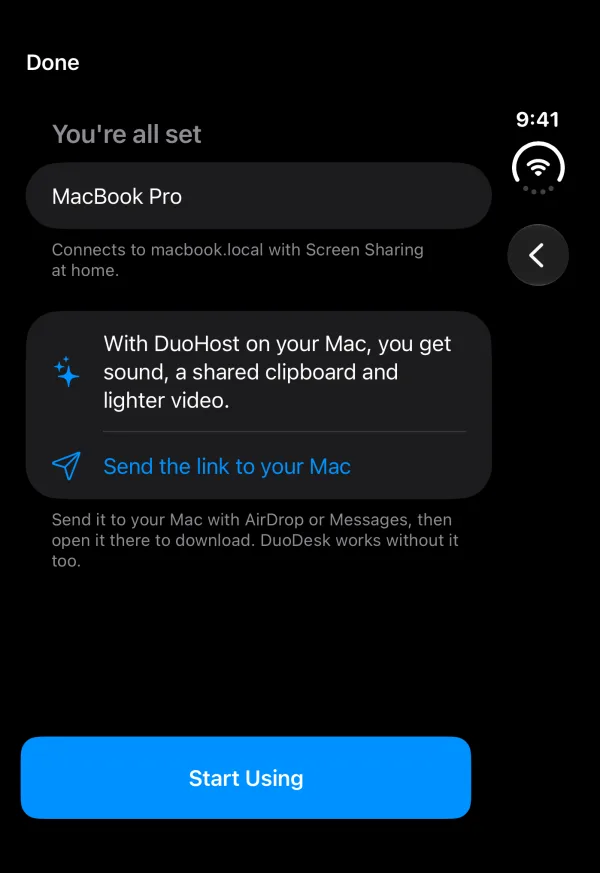
Download it with the button above and drag it to the Applications folder. On first launch it asks for Screen Recording and Accessibility; allow both. Then choose 接続用QRコードを表示 (Show connection QR code) in its menu bar menu and scan the code with Kamité: video gets lighter, and sound and copy-paste start working. Kamité Link's menus are in Japanese for now. Connections to Kamité Link run only inside Tailscale, which encrypts them.
You need: an iPhone or iPad (iOS or iPadOS 17 or later) and a Mac with Screen Sharing on. To use it away, Tailscale or your own VPN. Kamité Link needs macOS 14 or later.
On the Mac, open System Settings > Privacy & Security and turn on Kamité Link under Screen & System Audio Recording and under Accessibility.
If they are already on, an old permission is left over (for example after reinstalling Kamité Link). Run these two lines in Terminal, then restart Kamité Link and allow it again.
tccutil reset ScreenCapture jp.4px.duodesk.host tccutil reset Accessibility jp.4px.duodesk.hostCheck that Screen Sharing is on and that the Mac is on the same Wi-Fi as the iPhone. Local Network must be on in the iPhone's Settings > Apps > Kamité.
If it does not connect away from home, check that Tailscale is on on both the Mac and the iPhone, with the same account. When connecting through Kamité Link, also check that Kamité Link is in the Mac's menu bar.
In Kamité, choose Away or Saver under Settings > Quality. Brief stalls even on home Wi-Fi come from the iPhone's Wi-Fi pausing reception now and then; sound is delayed by just that much to avoid gaps.
On the iPhone, set Settings > Apps > Kamité > Paste from Other Apps to Allow.
In Kamité Link's menu, turn on Macをスリープさせない(外出用) (Keep the Mac awake, for use away). Closing the lid still puts it to sleep, so leave it open and plugged in.
While a hardware keyboard is connected to the iPhone, iOS does not show the on-screen keyboard.
Write to support@4px.jp. Your iPhone and Mac models, the iOS and macOS versions and what happened help us look into it quickly.
 Kamité